From an idea to a circuit board, its firmware and the box it lives in.
Describe what you want to build. Work with Codex to research parts, develop the schematic, refine the PCB layout, prepare the manufacturing files and write firmware for your custom board. Then use the same workshop for the mounts, enclosure and 3D-print preparation.
The goal is a design you can review and send to a PCB fabricator or assembly service—not just a picture of a circuit. The Giles Engine launcher brings your working tool connections, starter models and project revisions together.
It’s a beginner-friendly Windows launcher for an existing AI-assisted maker workflow. KiCad handles electronics. FreeCAD handles precise mechanical parts. Blender handles creative modeling. Bambu Studio prepares models for the printer. Codex talks to those tools through the working connectors you set up.
The Giles Engine brings the connections, diagnostics and starter workflows together. Instead of needing to know about Python environments or command windows to use the launcher, you get a setup checklist, clear next steps and a workshop for your projects.
The AI conversation happens in Codex. The launcher checks and organizes the connected workflow; it does not include its own chat assistant.
What you can do today
Electronics
Develop the circuit and PCB
Use Codex with your KiCad workflow to develop a schematic, inspect connections, refine component placement and prepare a board for manufacturing. The existing PCB connector includes placement, alignment and clearance inspection tools. Project-specific schematic and export work uses the tools available for that project.
Mechanical parts
Build a mounting plate
Give the workshop a project name and dimensions. Generate a mechanical plate with mounting holes using the proven FreeCAD workflow, then inspect the preview and keep the editable model for adjustments.
Electronics meets CAD
Make an enclosure and lid
Enter your measured board length, width and the interior height you need. Build a box and separate lid as a starting point for protecting your electronics. The starter enclosure has no latch or screw retention; plan those details and test the fit for your hardware.
Creative modeling
Start something in Blender
Build the included friendly-monster starter model with the existing Blender workflow. Keep the editable Blender file and geometry exports, then open it in Blender to take the design further.
Your project history
Keep every revision
Each build gets a fresh revision rather than overwriting the last one. Browse your projects, inspect previews, open editable models and find the generated files, request and report. Your project files live outside the installed app.
Print preparation
Take the model to Bambu Studio
Record your actual printer, nozzle and material, then open the model in the slicer. Select matching profiles in Bambu Studio, slice it and review the layers before you print. The handoff carries geometry; it does not automatically configure your slicer.
The electronics workflow: idea → schematic → PCB → manufacturing files
Maybe you want a sensor board, an LED controller or a small interface for another project. Start by explaining what it should do, how it will be powered, what it connects to and how much room you have. Codex can help turn those requirements into a design plan and work through the circuit with you.
1 · Requirements
Turn the idea into a circuit plan
Break the job into functional blocks, establish voltage and current requirements, identify interfaces and decide which parts need protection or special layout attention.
2 · Parts research
Design around what the builder can actually source
Research the chosen assembly service’s current parts catalog and available stock. Compare candidate parts with their datasheets, electrical ratings, package, footprint and assembly options. Availability becomes a design input, alongside performance and cost.
3 · Schematic
Develop and check the connections
Work through the schematic, component values, pin connections and support components. Use the project’s schematic tools and KiCad electrical-rule checks, then review the result against the actual component datasheets.
4 · Board layout
A layout that makes electrical sense
Place components around the circuit’s needs: connectors and mounting points, short critical connections, decoupling, return paths and physical clearances. Work through routing, copper and design-rule checks in KiCad, with the available connector tools assisting placement and inspection.
This work happens through Codex, KiCad and your project’s available tools. The current Windows launcher checks the connections and organizes the workshop. Some existing schematic tools are tied to a particular project; a general-purpose schematic-to-manufacturing workflow still needs project setup and validation.
Choose parts with the assembly service in mind
Instead of reaching the order screen and discovering the chosen chip is unavailable, check the builder’s catalog while developing the circuit. Codex can research accessible supplier and assembly catalogs, compare suitable alternatives and help record the exact manufacturer and assembly-library part numbers.
For example, you could ask: “Help me design a sensor board for JLCPCB assembly. Research suitable parts in their current assembly catalog, compare datasheets and footprints, and show me the shortlist before choosing the circuit.”
A substitute still needs the right pinout, ratings, package and electrical behavior. Recheck assembly stock and the final matched parts before placing an order. Public catalog research is part of the assisted workflow; the launcher does not currently provide a built-in inventory-sync service.
The manufacturing handoff has several pieces. KiCad provides export tools; the resulting files must be prepared for the chosen builder’s requirements and checked against the final board revision.
Gerber files
The board’s manufacturing layers: copper, solder mask, silkscreen and outline, as required by the fabricator.
Drill files
The hole locations and sizes used for vias, through-hole components and mounting features.
BOM · Bill of Materials
The shopping and assembly list: which parts belong on the board, their references, values, packages and exact part numbers. Add the builder’s catalog identifiers when its process requires them.
CPL · Component Placement List
The assembly map, also called a pick-and-place file: component references, X/Y locations, rotation and board side. Check the builder’s format, origin and rotation conventions, then review its placement preview.
Keep the editable schematic and PCB files with the release, along with the check reports and any assembly notes. Before ordering, review the electrical design, exported layers, BOM matches and placement preview. Passing software checks alone does not prove that a circuit will work on real hardware.
The circuit board is only part of the project. If it contains a programmable controller, it needs firmware—the code that makes the hardware do its job. Codex can help write that code for your custom board, using its actual schematic, chip, pin assignments and peripheral requirements.
Board-specific code
Write firmware for your hardware
Develop the startup code, pin configuration and application logic around the chosen controller. Work on sensor readings, output control and interfaces such as I²C, SPI or UART where the selected hardware supports them.
Bring-up and debugging
Make the software match the circuit
Check the firmware against the board’s pin map and electrical design. Add useful diagnostics, handle expected faults and build a step-by-step plan for bringing up the first assembled board.
Build and tests
Compile it. Test the behavior.
With the appropriate toolchain and test setup available, Codex can compile the firmware, inspect warnings and failures, write and run tests for the code, and help fix the results. Test the application logic and edge cases that can be exercised in software.
Project handoff
Keep the source and evidence
Retain the source project, board configuration, build instructions and test results with the hardware revision. Include the generated firmware file when the build produces one, so the person receiving the board knows what code belongs on it.
Be clear about what was tested. A successful compile, software test or simulation is different from running on the assembled board. Physical validation needs the board, a suitable programmer/debugger and the relevant test equipment. Firmware work happens through Codex and your project toolchain; the current launcher does not automatically flash a device.
Example request: “Use this schematic and pin map to write firmware for my custom board. Build it with the correct toolchain, test the logic we can test in software, and give me a checklist for the first hardware test.”
One idea, a few useful steps
Say you have a small circuit board and want a box for it.
Measure what you have. Record the board dimensions, component height and where cables need room.
Build a starting enclosure. Enter the measurements in My workshop and generate the body and lid.
Inspect and refine it. Check the preview, then open the editable FreeCAD model to add the mounting and cable details your project needs.
Try another revision. Adjust the design without losing the first version. Keep notes with the project.
Prepare the print. Open the geometry in Bambu Studio, choose your real printer and filament, review the sliced layers and make a test fit.
For work through Codex, start with a request such as: “Check the KiCad and 3D tool connections first. Help me plan an enclosure for my measured board, and show me the dimensions before building it.”
Board measurements are entered by you in the current starter workflow. Automatic board-to-enclosure generation is future work.
A setup screen that tells you what’s missing
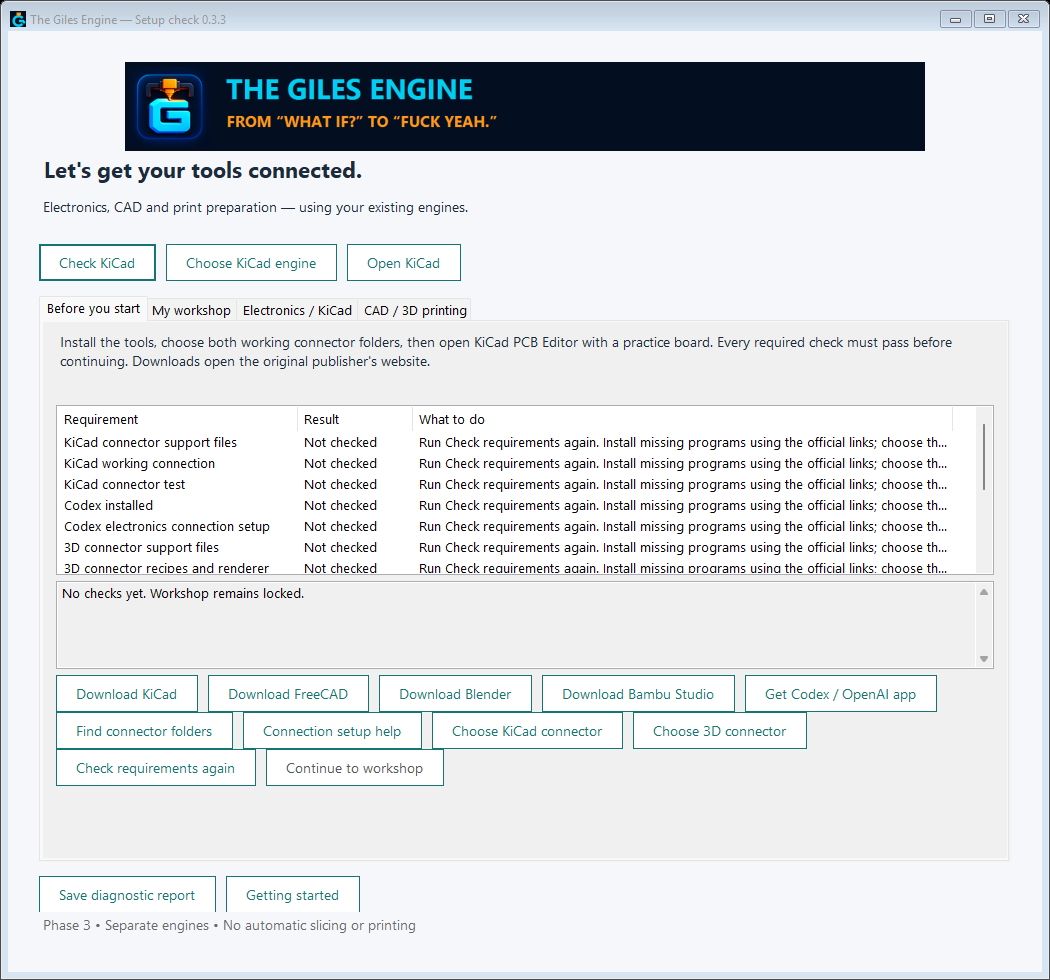
Before you enter the workshop, the app checks the required programs and connections. Download buttons take you to the official software websites. If the connector folders are hard to find, it can read existing Codex settings or scan a folder you choose for likely matches.
A found folder still has to pass the real checks. When something is missing or unverified, the workshop stays locked and the screen explains the next step.
The actual Windows setup screen. This example shows the checklist before checks have run.
Useful files, not just a pretty preview
Depending on the model, a revision includes an editable FreeCAD or Blender file, geometry exports such as STEP, STL or 3MF, a preview and a build report. You can reopen the design, work on it in the original program and retain earlier versions.
Basic geometry checks help spot some problems, including a mesh that isn’t closed or has inconsistent surface directions. They do not prove strength, wall thickness, support requirements or physical fit. Review the design and slicer result before printing.
You’ll need the working connectors too. This package contains the launcher and installer. It does not bundle the verified KiCad and PrintForge connector code or their runtimes. Get that setup from the person providing The Giles Engine before continuing.
Download and extract the entire ZIP. Keep its files together.
Open Check before installing.exe.
Follow the checklist and install missing software through its official links.
Select your connector folders. Open KiCad PCB Editor with a practice board, then enable Preferences → Plugins → Enable KiCad API.
Click Check requirements again. Once every requirement is Ready, click Install Giles Engine.
Open the installed app, check the connections and click Continue to workshop. Confirm your sign-in and tool access inside Codex.
The launcher uses your existing engines in place. Each person signs in with their own OpenAI account.
The software behind the workshop
Download the programs from their publishers. The setup checker verifies the supported connections on your computer.
The tested electronics setup uses KiCad 10.0.6 with its compatible connector runtime.
A few things people usually ask
What does a “working connection” mean?
It means the connector can communicate with the actual tool and get a reply now. Finding a program on disk is only part of the check; the app also tests the supported connections.
Can I just install it on a brand-new computer?
You can install the launcher, but the workshop needs the supported software and verified connectors first. The checker helps identify what’s missing. Connector and runtime bundling is still future work.
Do I have to open all the programs?
KiCad PCB Editor needs to be open with a board and its API enabled for the current readiness checks. The supported FreeCAD and Blender workflows can run through background helpers. Open Bambu Studio when you’re ready to prepare the print.
Does it automatically print things?
No. It prepares models and opens them in the slicer. You choose the profiles, slice the model, review the preview and decide when to print.
Will it replace my existing tools or erase my models?
The launcher reuses your existing engines and keeps generated projects outside the installed app. Builds create new revisions, and the installer has been tested to preserve preferences and user-added data.
Is there a Mac version?
The current release is for Windows. A Mac version would need its own launcher, packaging and testing on a real Mac.